 CaixaUnica
Install CaixaUnica on Android without the Play Store (in 30 seconds)
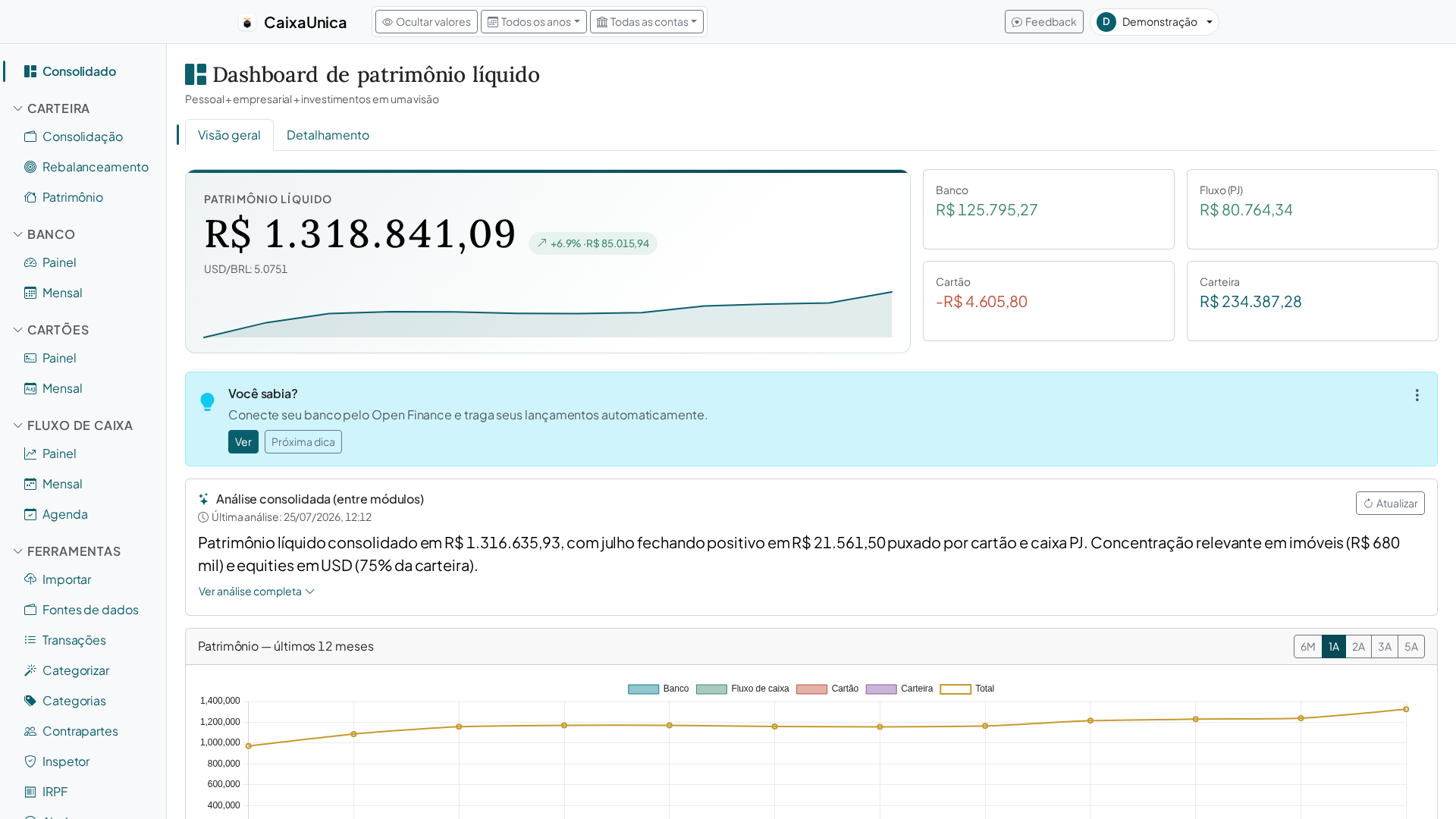
You don't have to wait for the Play Store to get CaixaUnica as an app on your phone. It's a PWA (Progressive Web App), so you can install it straight from the browser in a few taps: an icon appears on your home screen and, when you open it, it runs full screen — no browser bar, just like any other app.
Why install it this way
- Icon on your home screen — open with one tap, no typing the address.
- Full screen — no URL bar taking up space; it feels like a native app.
- Lightweight — it doesn't download a big package from the store; it uses what the browser already has.
- Always up to date — it's the same version as the site, so you're never stuck with an outdated app waiting on store approval.
- Your data is the same — it's your CaixaUnica account, just a handier shortcut.
Step by step on Android (Chrome)
- Open Chrome and go to
www.caixaunica.com.br. - Log in (or create your account) — it's worth installing while already signed in.
- Tap the ⋮ menu (three dots, top right).
- Tap "Add to Home screen" (in some versions it shows as "Install app").
- Confirm the name and tap Add / Install.
- Done: the CaixaUnica icon appears on your home screen. Open it from there — it'll launch full screen, like an app.
On some devices, Chrome shows an "Install CaixaUnica" prompt at the bottom on its own when you visit the site — if it appears, just tap it and jump straight to step 5.
Other Android browsers
- Samsung Internet and Microsoft Edge have the same option in their menu — look for "Add to Home screen" or "Install".
- Firefox — menu → "Install" / "Add to Home screen".
And on iPhone?
On iOS the shortcut lives in Safari:
- Open
www.caixaunica.com.brin Safari. - Tap the Share button (the square with an up arrow).
- Scroll and tap "Add to Home Screen".
- Confirm — the icon appears on your home screen and opens full screen.
Ready to use
Once installed, just open it from the icon and carry on as usual: import your statements, track your portfolio, your card, and your income tax — now a single tap away. Don't have an account yet? Create one and install it to your home screen on your very first visit.