 CaixaUnica
How to use CaixaUnica to organize your finances
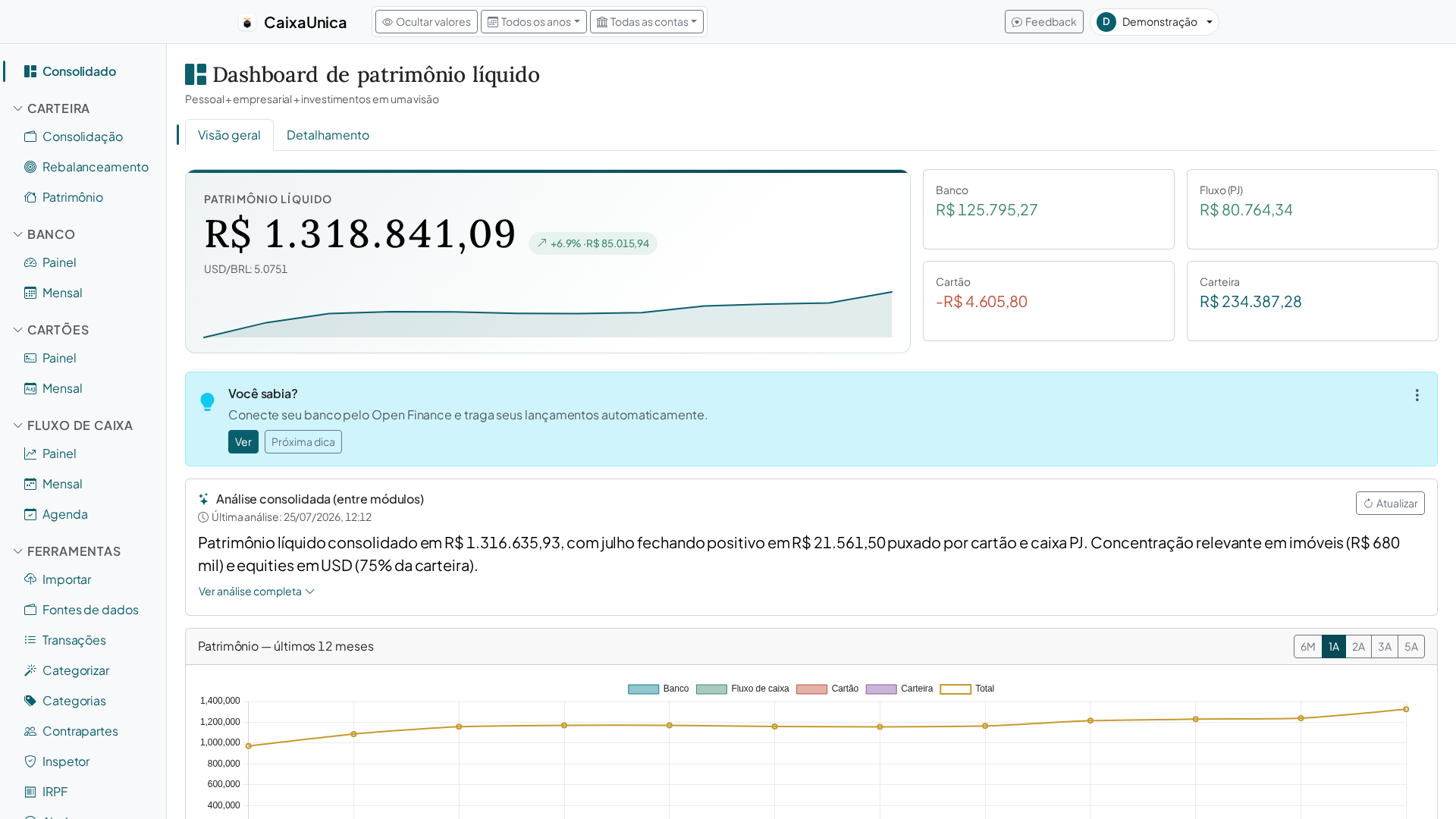
Keeping your finances under control usually trips on the same problem: the data is scattered. Your balance lives in the bank app, the bill in the card app, your investments at the brokerage, and your income tax in a spreadsheet nobody can read anymore. CaixaUnica exists to bring all of it into one place — and this guide shows the shortest path to get started.
1. Create your account
The first step is to create a free account. All you need is a valid email; we don't ask for any banking details to begin. After you confirm your email, you land straight on the Consolidated dashboard, which will still be empty — that's where everything starts to make sense as soon as the first data comes in.
CaixaUnica is multi-user and multilingual (Portuguese, English, and Spanish) and works just as well in light and dark mode. Adjust the language and theme in the top corner of the screen whenever you like.
2. Import your first statement
Instead of typing in transactions one by one, CaixaUnica imports statements — and, if you'd rather skip even that step, you can connect your bank through Open Finance and let transactions flow in on their own (there's also a demo mode with sample data, if you want to explore before bringing your own). To import, head to the Upload page and drag in the file you downloaded from your bank or brokerage. The most common formats are recognized automatically:
- OFX and CSV from banks, for checking and savings accounts;
- Credit card bills in CSV;
- Reports from B3, Avenue, and Binance for investments.
The detector identifies the format from the file's contents and suggests the right importer. If it isn't sure, you simply pick from the list — nothing gets imported in the wrong format by mistake. Each row gets a unique fingerprint, so re-importing the same file never creates duplicates: you can upload the whole month's statement without worry.
3. Organize card and bank spending
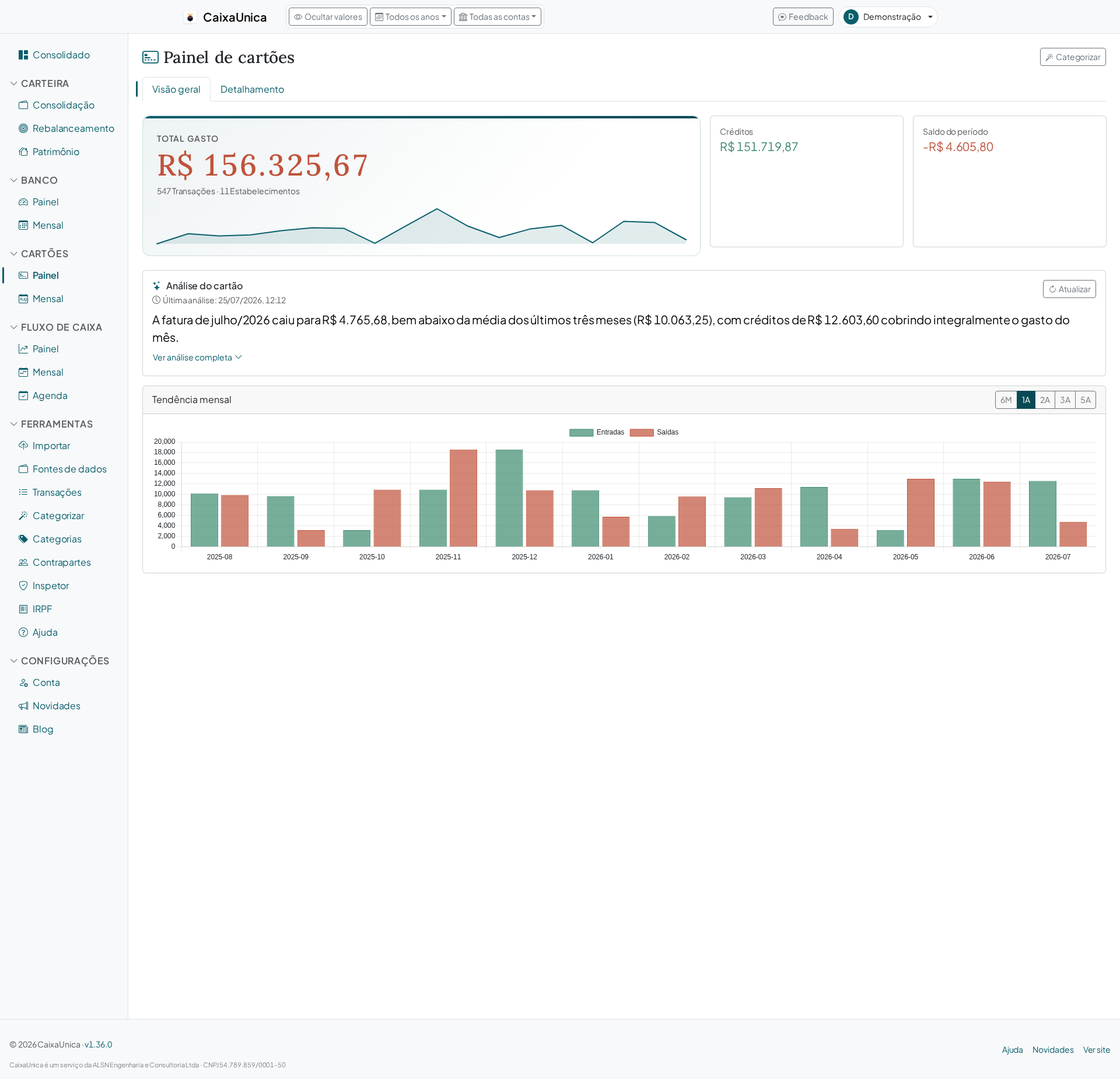
With the transactions in the system, the next step is to make sense of them. On the Transactions page you review, filter by period and account, and assign categories to your spending. Categories are what turn a list of debits into answers: how much went to groceries, transport, subscriptions, or leisure this month.
If you have a lot of transactions, you can use the categorization assistant, which groups similar transactions so you can classify several at once instead of one by one.
4. Track your investment portfolio
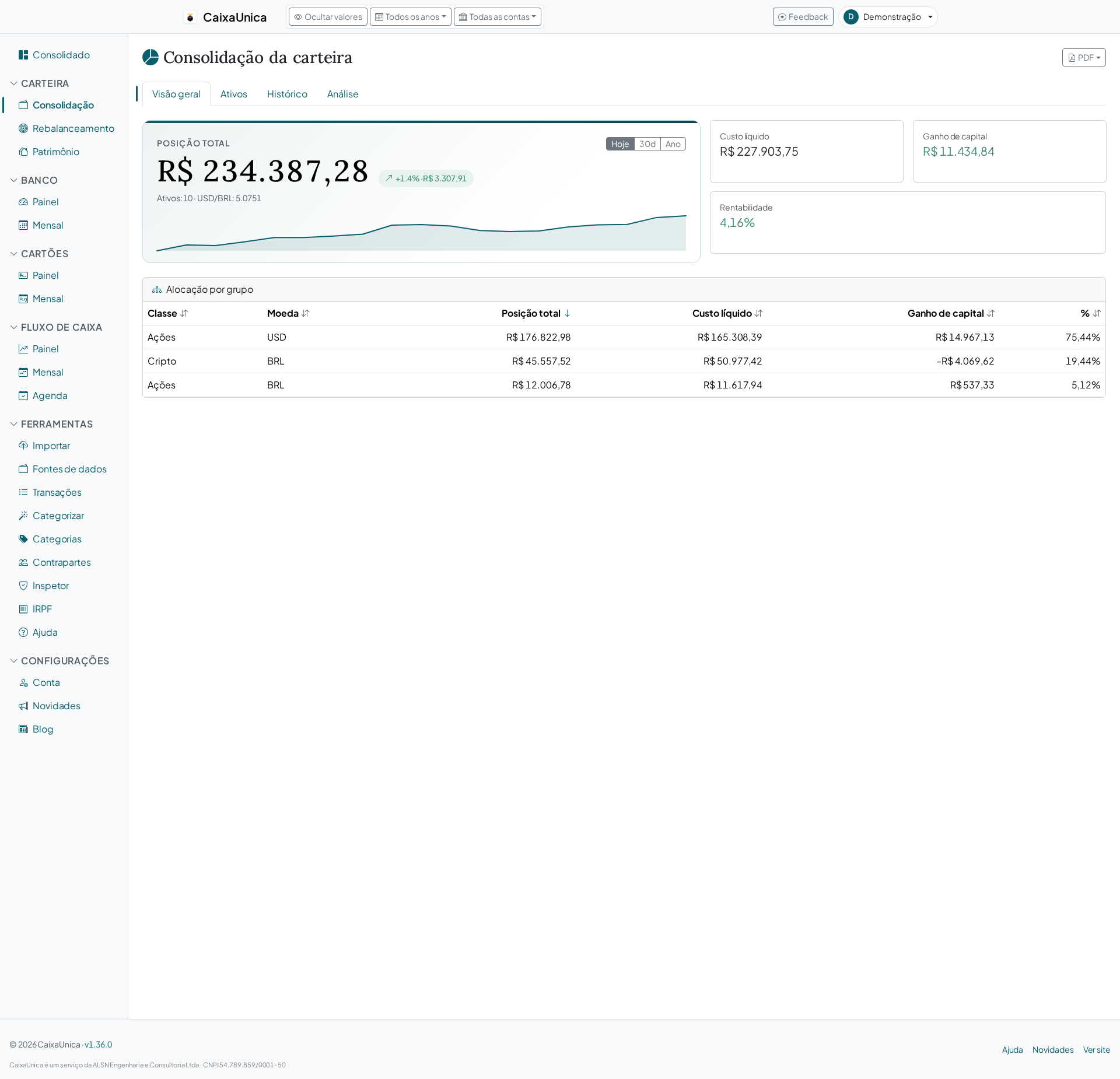
The Portfolio tab consolidates your assets from the reports you imported — stocks and funds from B3, international positions at Avenue, and crypto on Binance. CaixaUnica calculates your current position, average price, and performance over time, with quotes fetched automatically for supported assets.
Each asset class has its own yearly view, especially useful when it's time to review the year's gains and losses.
5. Manage your cash flow
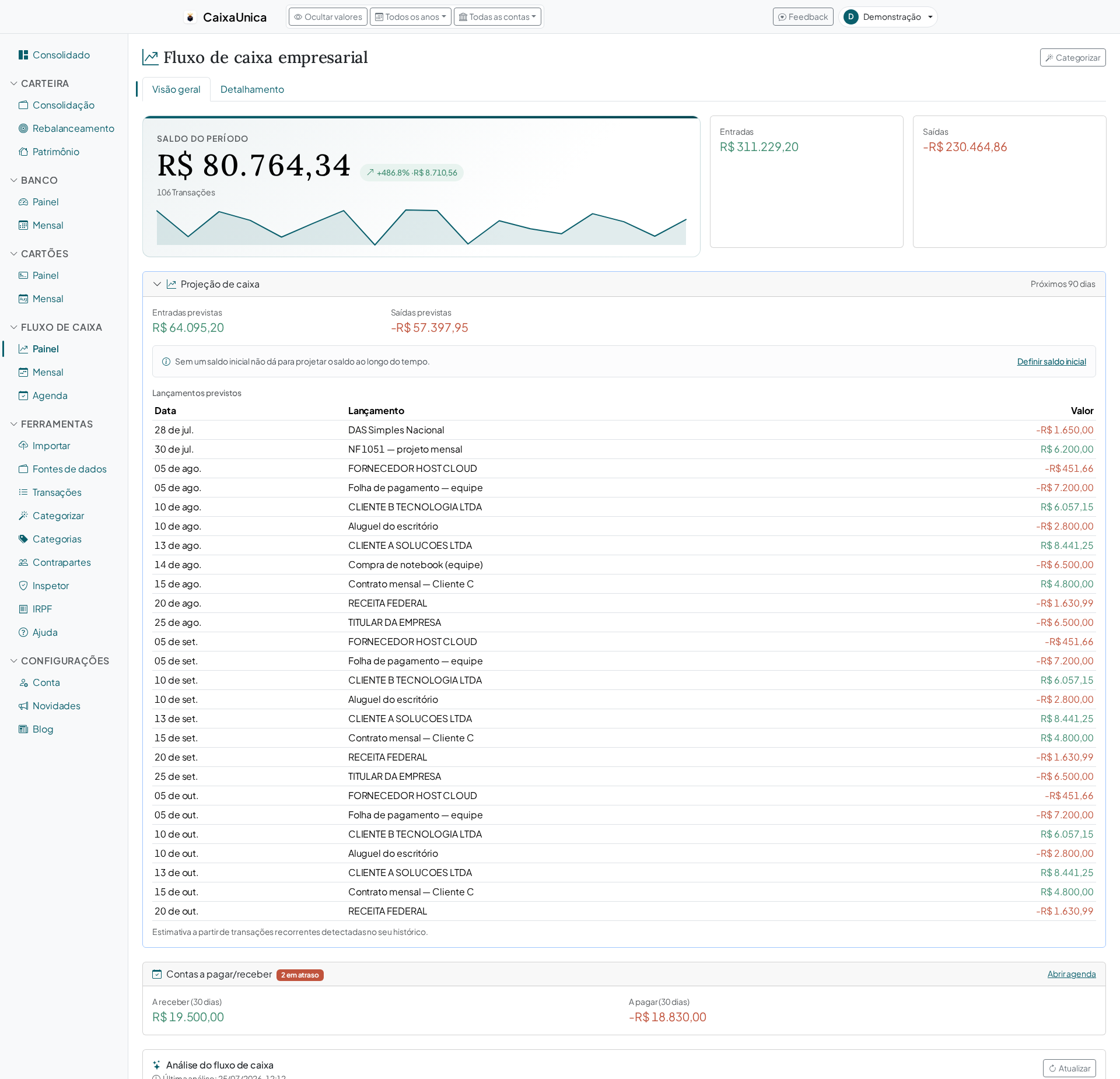
For those who also use CaixaUnica for a business, the Cash Flow tab shows money in and money out over time and helps you read the health of your cash month by month. The same import logic applies here: you bring in the statements and the system organizes them.
6. Get ready for your income tax return
At tax season, the IRPF tab (Brazil's annual income tax return) pulls together the information that normally takes hours of digging across several apps: your assets and rights at year-end, income, and movements. The goal isn't to replace the tax authority's software — it's to give you the right numbers to file with confidence, and to double-check what you've already filed.
7. Let AI summarize what matters
In several places across the product you'll find AI-generated summaries: quick reads on your spending, your portfolio, or your month. They help you catch the trend without reading every number — and they're cached, so they're only recalculated when your data changes or when you ask to refresh.
Where to start today
If you're just beginning, this is the most efficient path:
- Import last month's statement from one account — just to watch the data take shape on the Consolidated dashboard.
- Categorize your biggest expenses first; the fine detail can come later.
- Upload a report from your brokerage to see your portfolio appear.
In a few minutes you already have a real picture of where your money is going — and it's exactly that picture, kept current without a spreadsheet, that CaixaUnica was built to maintain.